Using the extension
6 steps · about 3 min
- 1
Open the popup on your chart
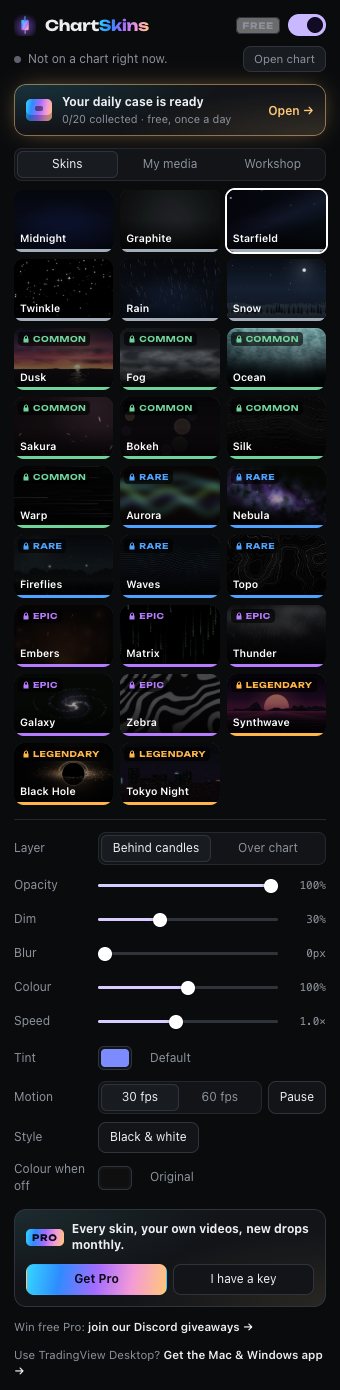
With a TradingView chart open, click the ChartSkins icon in your toolbar.
- 2
Pick a skin
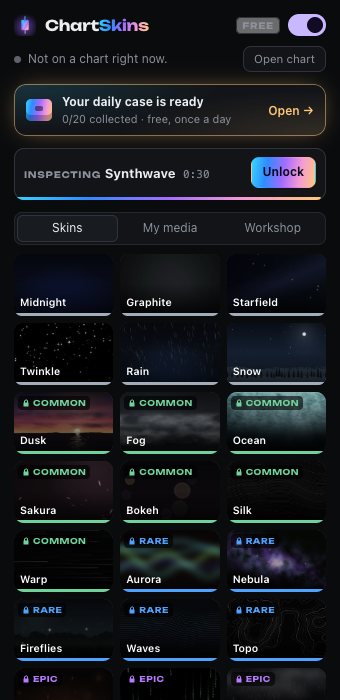
Click any tile under Skins. It changes on your chart instantly. Locked skins (Pro) can be inspected for 30 seconds so you can see them on your own chart first.
- 3
Tune the look
Dim darkens the skin so candles stay easy to read. Blur softens it. Opacity makes it more see-through. Colour at 0% (or the Black & white button) removes the colour. Speed slows or speeds up the motion.
- 4
Behind candles or over the chart
Behind candles (default) puts the skin under your chart. Over chart blends it on top: use it if your chart theme hides the skin.
- 5
Turn it on and off fast
The switch at the top turns skins on and off. Shortcut on TradingView: Alt + Shift + B (Mac: ⌥⇧B).
- 6
Colour when off
Pick the exact background TradingView gets back when skins are off (also what your phone and screenshots show). Leave it on Original to keep your own.