Install the browser extension
6 steps · about 3 min
- 1
Download it
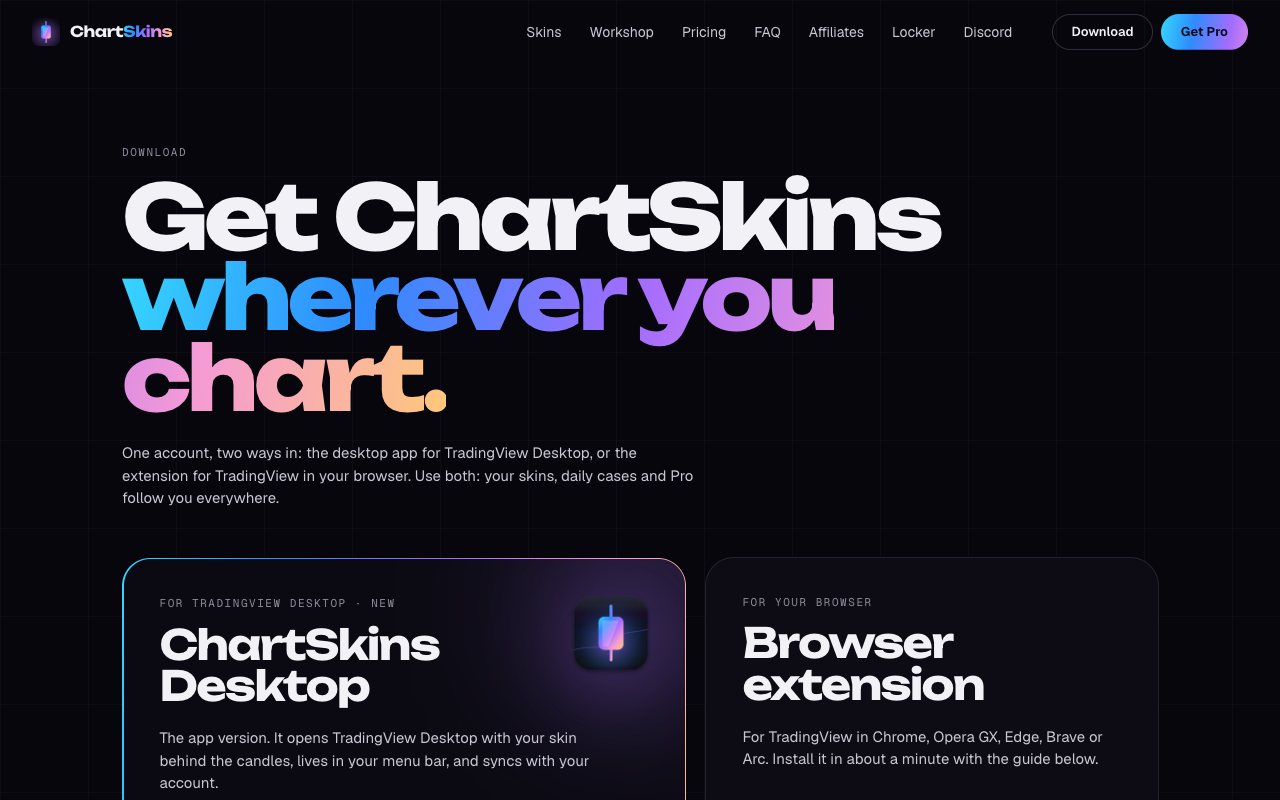
On chartskins.com/download, scroll to the browser extension and click Download extension. You get a .zip file.
- 2
Unzip it somewhere permanent
Double-click the .zip. Move the ChartSkins folder that appears to Documents (not Downloads, which people often clear). Chrome runs ChartSkins from this folder, so keep it.
- 3
Open your extensions page
Type chrome://extensions in the address bar and press Enter. (Edge: edge://extensions · Brave: brave://extensions · Opera: opera://extensions.)
- 4
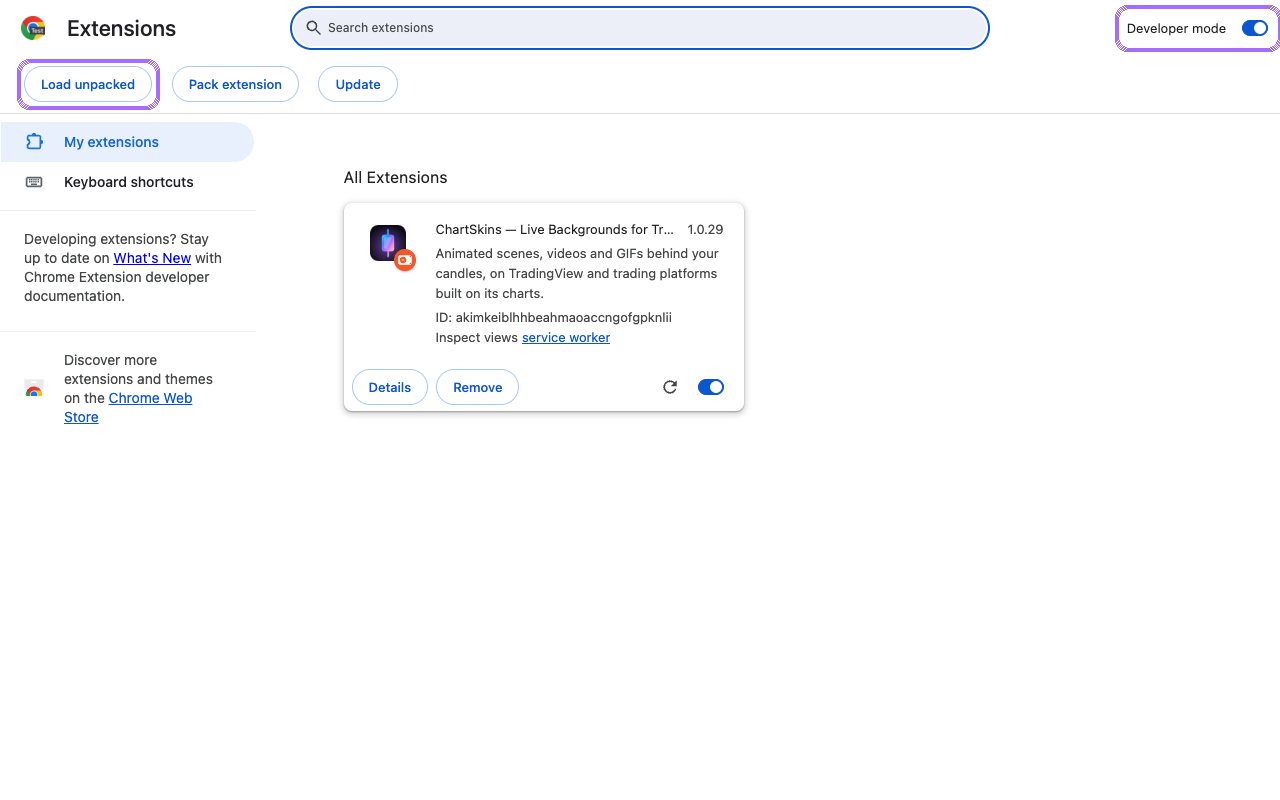
Turn on Developer mode, then Load unpacked
Switch on Developer mode (top right), click Load unpacked (top left), and pick the ChartSkins folder you just moved.
- 5
Pin it and sign in
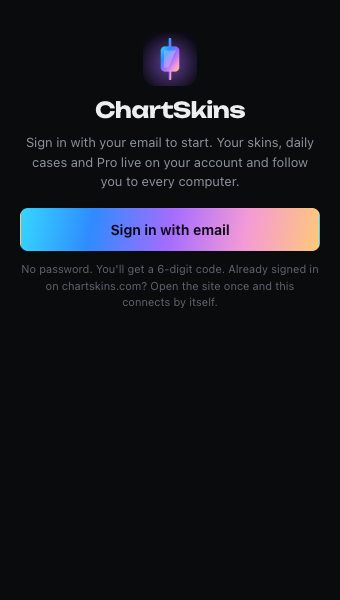
Click the puzzle-piece icon in Chrome’s toolbar and pin ChartSkins. Click it and sign in with the same email as your account.
- 6
Open a chart
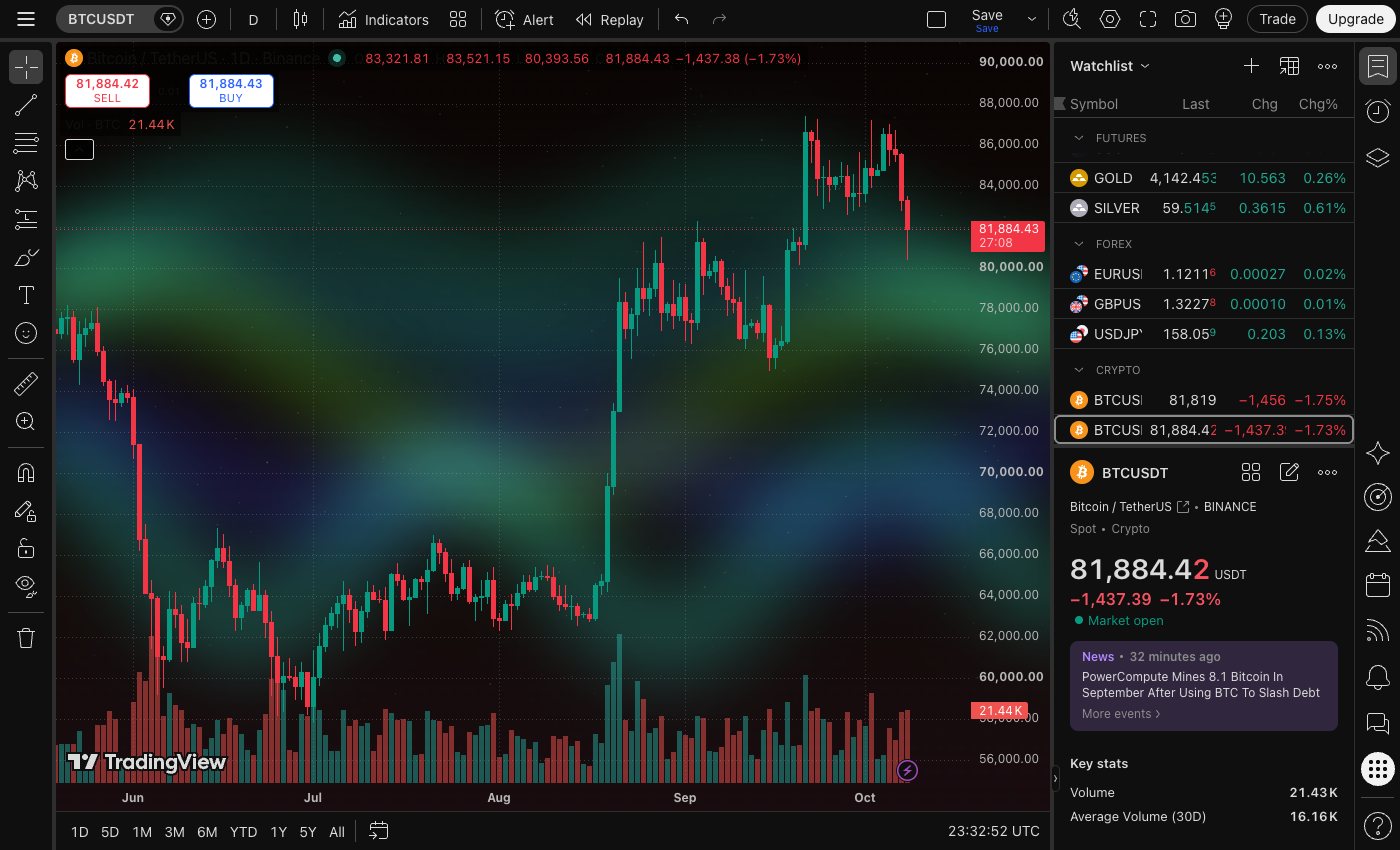
Open any chart on tradingview.com. Your skin is already behind the candles.
Good to know
- • Chrome may show a “Disable developer mode extensions” bubble when it starts. Click the X; ChartSkins keeps working.
Still stuck? Ask in our Discord
Next: Using the extension →