Install the desktop app (Mac & Windows)
6 steps · about 3 min
The desktop app is for people who use the TradingView Desktop app. If you use TradingView in a browser, use the browser extension instead.
- 1
Download it
On chartskins.com/download, click Mac or Windows.

- 2
Mac: install and allow it
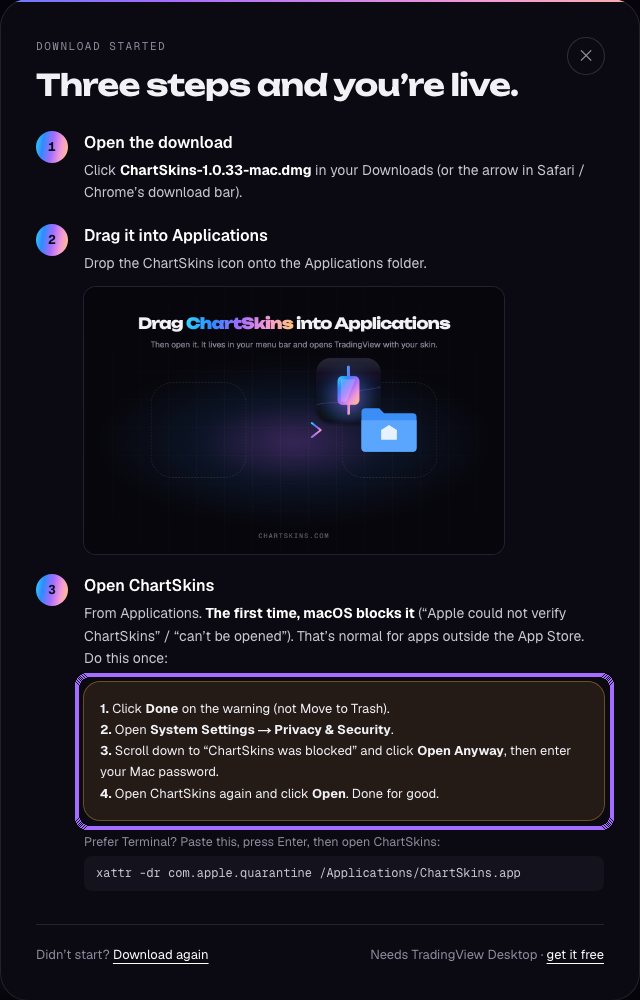
Open the .dmg and drag ChartSkins into Applications. The first time you open it, macOS blocks it because it’s not from the App Store. Click Done, then go to System Settings → Privacy & Security, scroll down and click Open Anyway. You only do this once.
- 3
Windows: run the installer
Open ChartSkins-Setup.exe. If “Windows protected your PC” appears, click More info → Run anyway. It installs in seconds.
- 4
Sign in
ChartSkins opens and asks for your email and the 6-digit code. Same account as the extension.

- 5
Connect TradingView
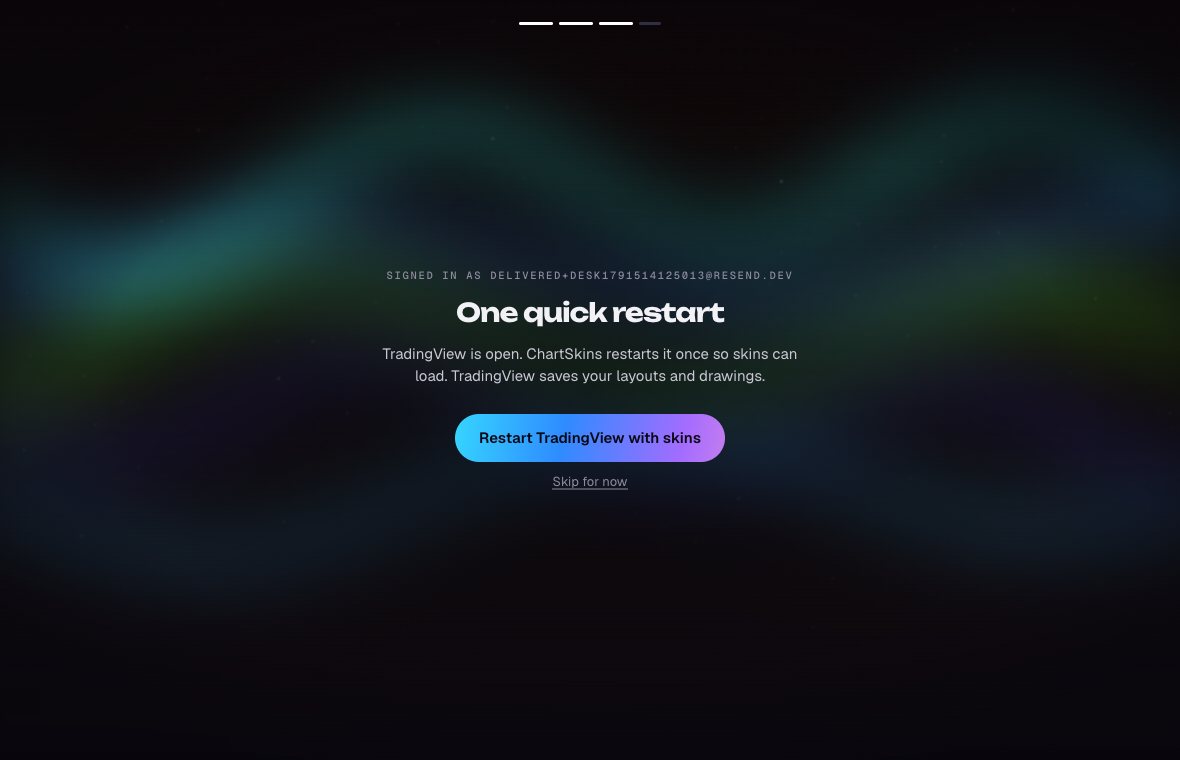
If TradingView is already open, ChartSkins restarts it once so skins can load. Your layouts and drawings are saved by TradingView.
- 6
Pick your skin
Click any skin. The Look tab has the same controls as the extension (Dim, Blur, Black & white, Colour when off).

Good to know
- • Turn on Launch with TradingView in Settings and your skin comes along every time you open TradingView.
- • Updates: the app shows Restart & update. Click it, that’s all.
Still stuck? Ask in our Discord
Next: Add your own wallpapers →